
Know what your Wi-Fi is doing.
Wavebug sits in the corner of your Windows taskbar and shows signal, speed and delay as they happen. When a call stutters, you can see why.
Also for Mac, with the same key: Wavebug for Mac
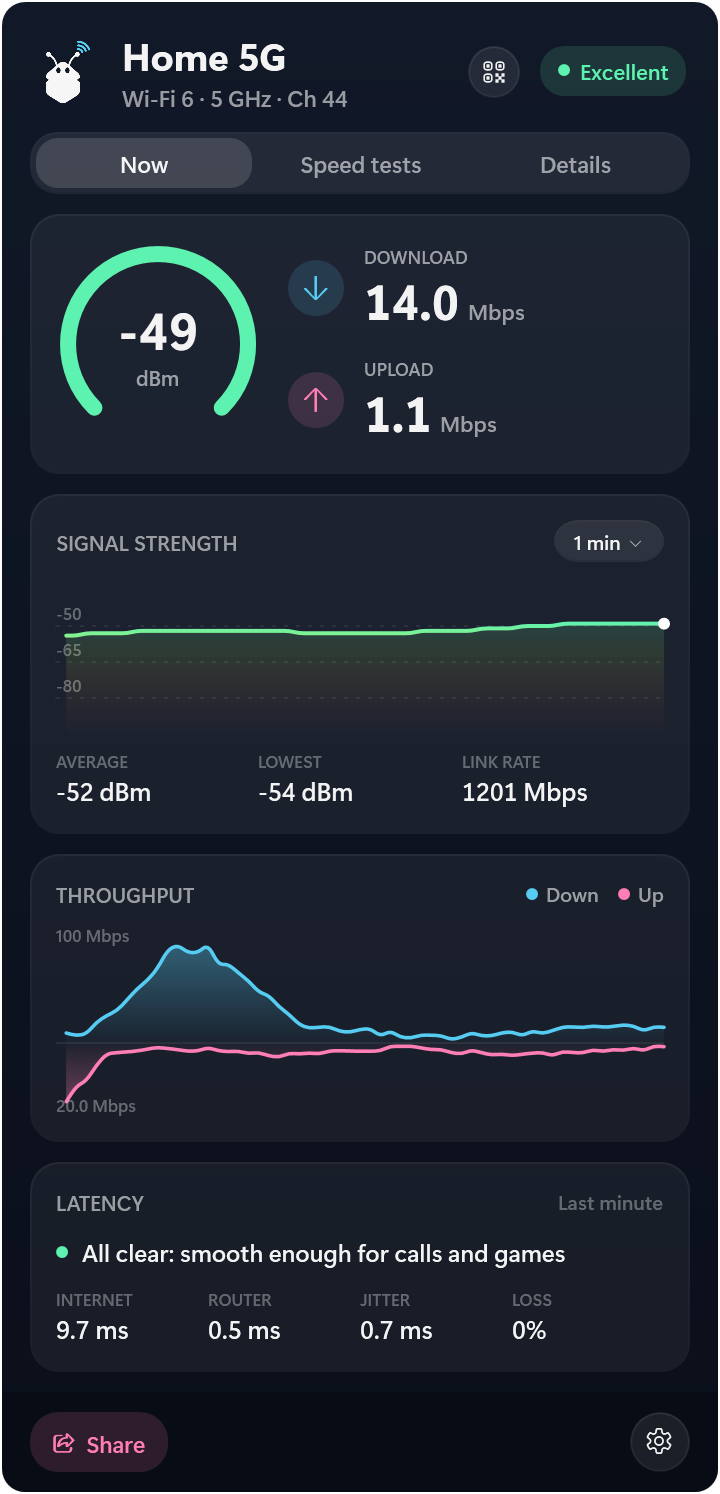
Wi-Fi or your provider?
Wavebug times the trip to your router and to the internet separately, so you know which one is slow.
Find the good spot
Watch signal strength change as you move the laptop or the router, and keep what works.
Evidence, not a hunch
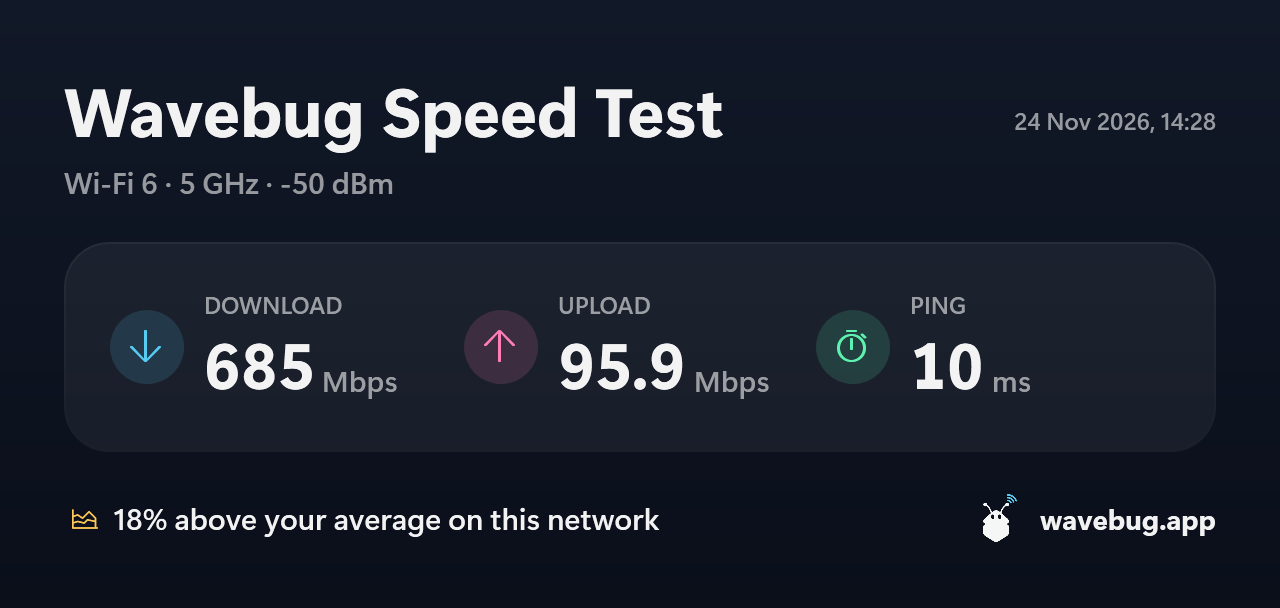
Run a speed test whenever you like, or on a schedule. Every result is kept, ready for the next call to your provider.
Watch the test happen
Start a speed test and see it work: download, then upload, each climbing as the test finds your line's speed, then settling on the result. Tests are measured against Cloudflare's speed test servers.
- On a schedule, within your plan. Test every hour or once a day. Scheduled tests are kept short, stop at a monthly data limit you choose, and wait while you're on a metered connection, such as a phone's hotspot.
- Every result kept. See how tonight compares with last week, before you call your provider.
- Share any test. Copy it as a tidy card. Your network's name stays off it unless you choose to show it.
A minute ago, or all year
Graphs cover anything from the last minute to all time. Point at any moment to read the exact value and when it happened.
The numbers behind a bad call
Delay, jitter and dropped packets are what make video freeze. Wavebug measures all three, then tells you in plain words whether your Wi-Fi or your provider is to blame.
Plugged in? It follows you there
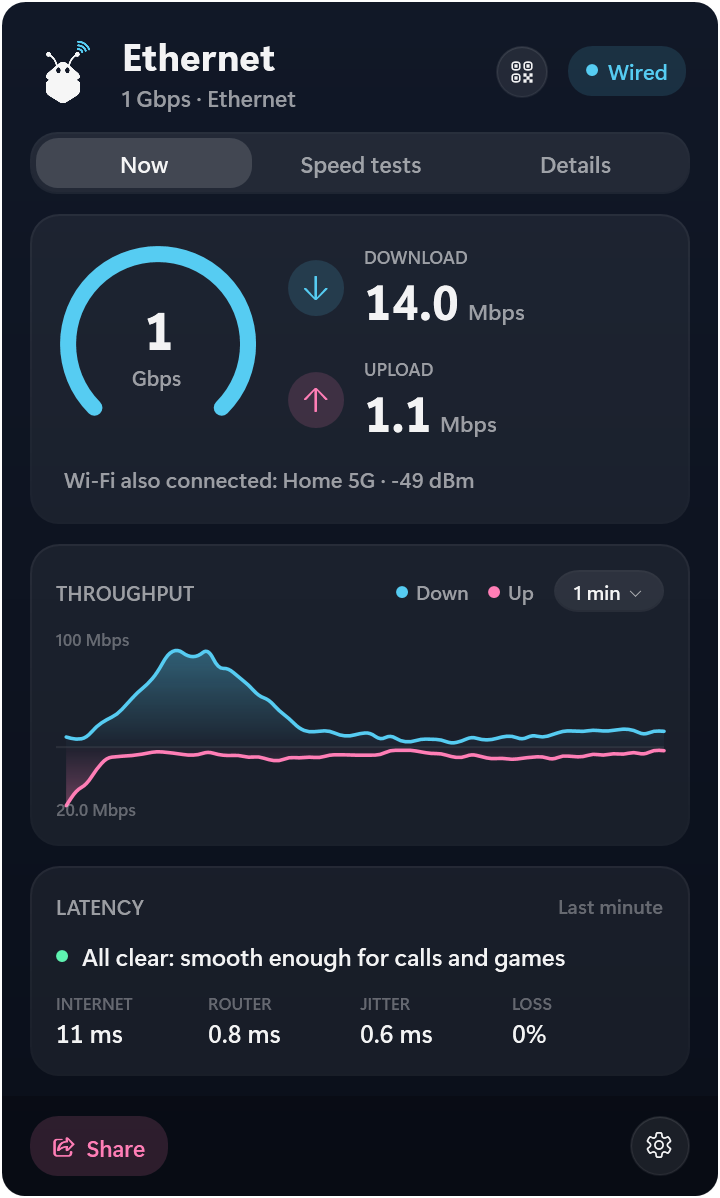
Wavebug is a Wi-Fi app first, but it knows when you've plugged in a cable. On Ethernet it shows a proper wired view: the cable's speed, live download and upload, the same plain-English latency verdict, speed tests and alerts.
It follows whichever connection Windows is actually using, and the top of the panel always says which one you're looking at.

Know the moment it drops
Get a Windows notification when the signal weakens, delay climbs, packets go missing or the connection drops, even with the panel closed. Each alert waits for things to recover before it can fire again, and they're all off until you switch them on.
A glance, without opening it
The waves on Wavebug's icon show your signal. Rest the pointer on it for the network's name, signal, live speeds, and ping while it's being measured. Click it for the full panel.


Guests join with a glance
Show a QR code and a phone's camera does the rest. Wavebug can use the password Windows already saved for the network, so there's nothing to look up or type.
Results worth sharing
Copy any speed test, or a snapshot of your connection, as a tidy card, or save it to your Pictures folder. Addresses are always left out, and so is your network's name unless you choose to show it.
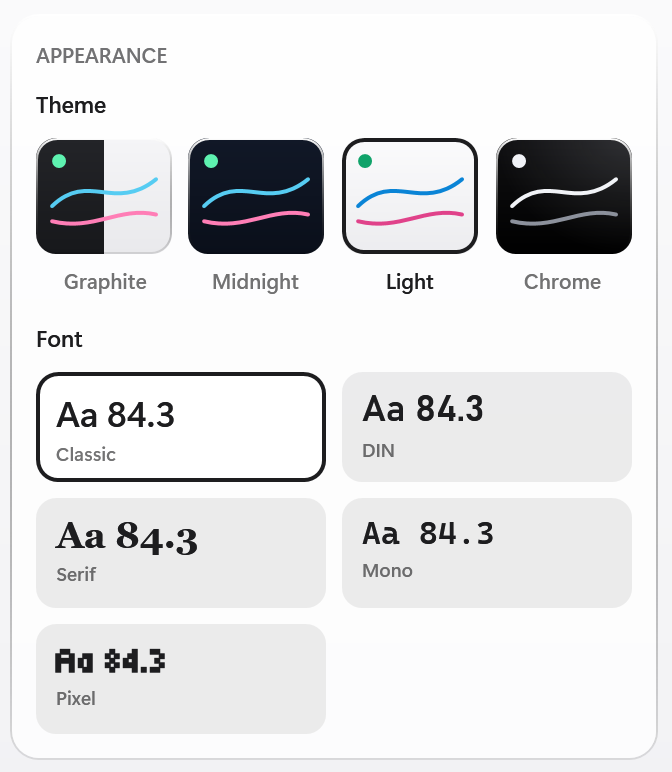
Four themes, five fonts
Graphite follows Windows' light or dark mode. Midnight, Light, and Black and Chrome stay as they are. Set the numbers in Classic, DIN, Serif, Mono or Pixel.
ALSO IN THE BOX
Records and details
Your top download, top upload and best signal, with the connection's standard, security and addresses a tab away.
Light on your PC
With the panel closed, Wavebug rests at about 0.2% of one processor core.
Looks after itself
Starts with Windows if you like, and updates itself, showing you what's new first.
Private by default
No account and no tracking. Your history stays on your PC.
Pay once. Keep it.
£3.99, no subscription. For Windows 11. One key covers Windows and Mac, on two computers at a time.
Buy for £3.99No admin rights needed · Secure checkout with Stripe · 14-day refund
On a Mac? Wavebug for Mac uses the same key.
Questions
Why not just check my router?
Your router's page shows its side: whether its line to the internet is up. Wavebug shows your PC's side too. It times the delay to your router and to the internet, so it can tell you in one line whether it's your Wi-Fi or your provider. It keeps a history, so you can see drops that came and went while you weren't looking, and it can tell you the moment one happens. And it works the same at the office or in a café, where you can't log in to the router.
Which versions of Windows does it work on?
Windows 11. It installs for your account only, so there's no admin password to enter.
Is it a subscription?
No. It's £3.99 once, and updates are included. Wavebug updates itself and shows you what's new first.
How many computers can I use it on?
Two at a time, and they can be Windows PCs, Macs or one of each: the same key unlocks Wavebug for Mac. Moving to a new computer? Deactivate the old one in Settings → Licence, and the new one can take its place. If an old one died before you could, email us.
I can't see the icon. Where is it?
Windows 11 tucks new icons behind the small arrow at the corner of the taskbar. Click the arrow and you'll find Wavebug there; drag its icon down onto the taskbar to keep it in view.
Does it work on Ethernet?
Yes. Wavebug is built for Wi-Fi, but when Windows is using a cable it shows that connection instead: its speed, live download and upload, latency, speed tests and alerts. If Wi-Fi is connected as well, it says so.
Why does it need Location?
Windows 11 only tells apps the name of your Wi-Fi network if they're allowed Location. Wavebug never reads or stores where you are. Without it, Wavebug can't show your network's name, and the panel offers a button that opens the Windows setting.
How much data does a speed test use?
A test runs as fast as your line allows, so faster connections use more: on a very fast line, a full test can use about 1.3 GB. Scheduled tests leave out the largest transfers, stop for the month at a limit you choose (10 GB unless you change it), and wait while Windows has the network set as a metered connection, as a phone's hotspot is. Tests are measured against Cloudflare's speed test servers.
Does it slow my PC down?
No. With the panel closed it uses about 0.2% of one processor core, and it only measures more while you're looking.
Does it send my data anywhere?
No. What Wavebug measures stays on your PC. The privacy page lists the little that leaves it: unlocking, update checks, the pings that time the delay, and the speed tests themselves.
What if it's not for me?
Email us within 14 days of buying for a full refund, no questions asked. Uninstalling it from Windows' Installed apps removes Wavebug and its files.